

How to request a refund.
There are various reasons that one may choose to request a refund. For further information, please visit FAQs and the seller’s policy to find out if your purchase qualifies for a refund.
Already confirmed? Great! Here is a step by step guide on how to request a refund from the seller.
Table of contents
How to request a refund.
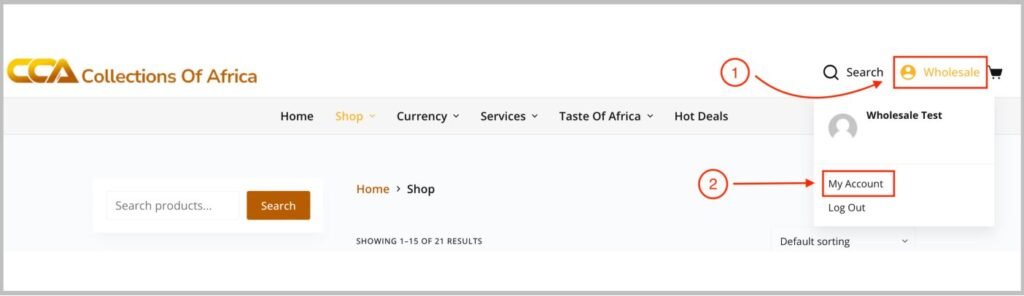
To access the order
- Click the Account icon on the top left corner of the screen.
- Click My Account on the drop down.
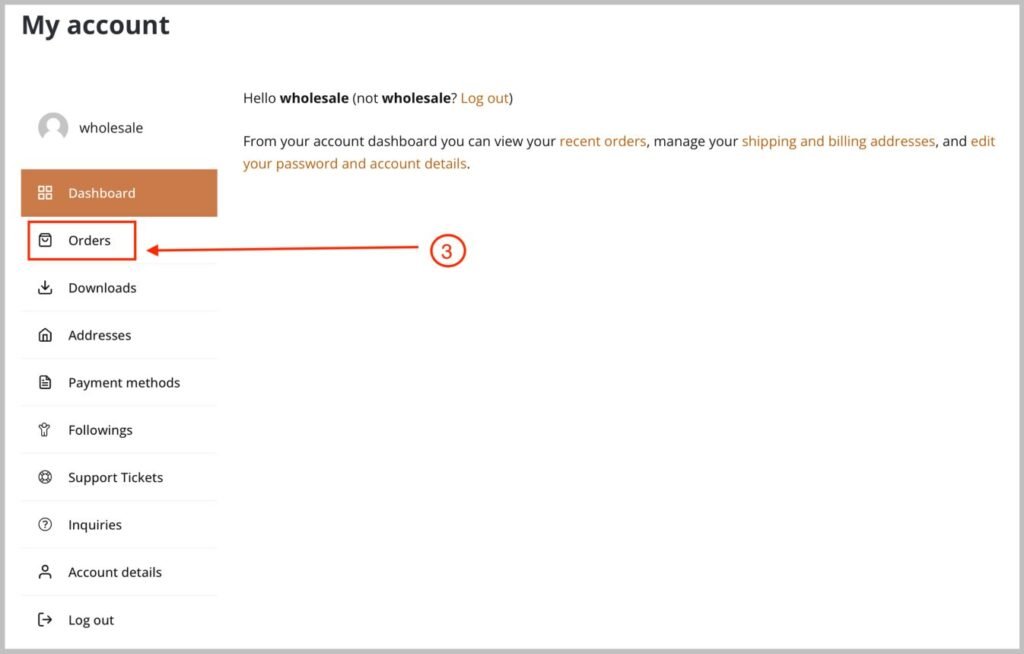
- Click Orders to open the order page.
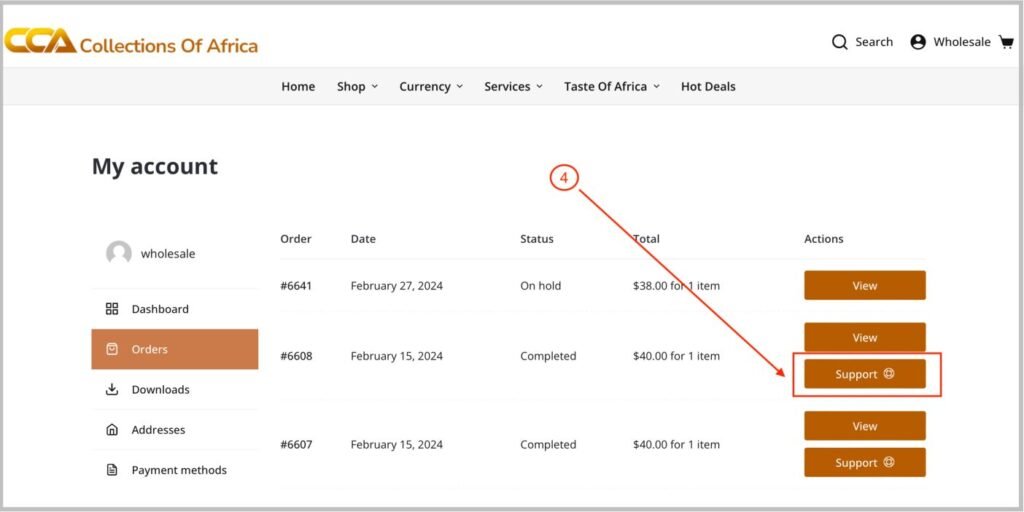
Access the support tab.
- Click support to open the support page.
Enter refund request details
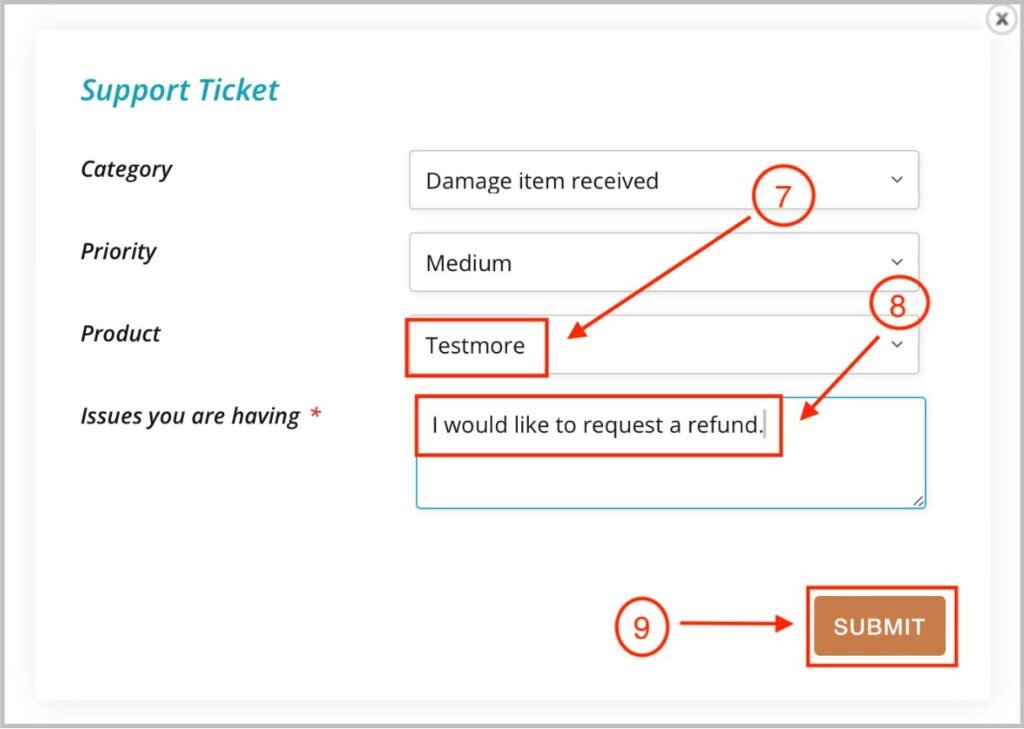
- Click Category and choose your subject on the drop down i.e Damage item received.
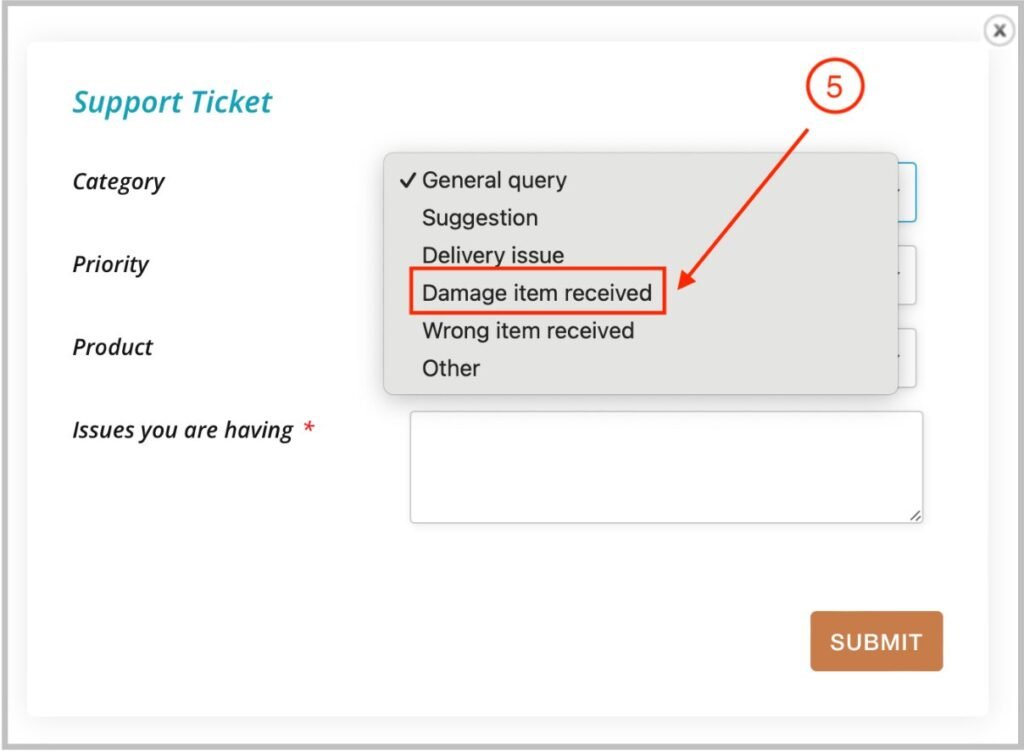
- Click priority and choose the urgency of your request from the drop down i.e Medium.
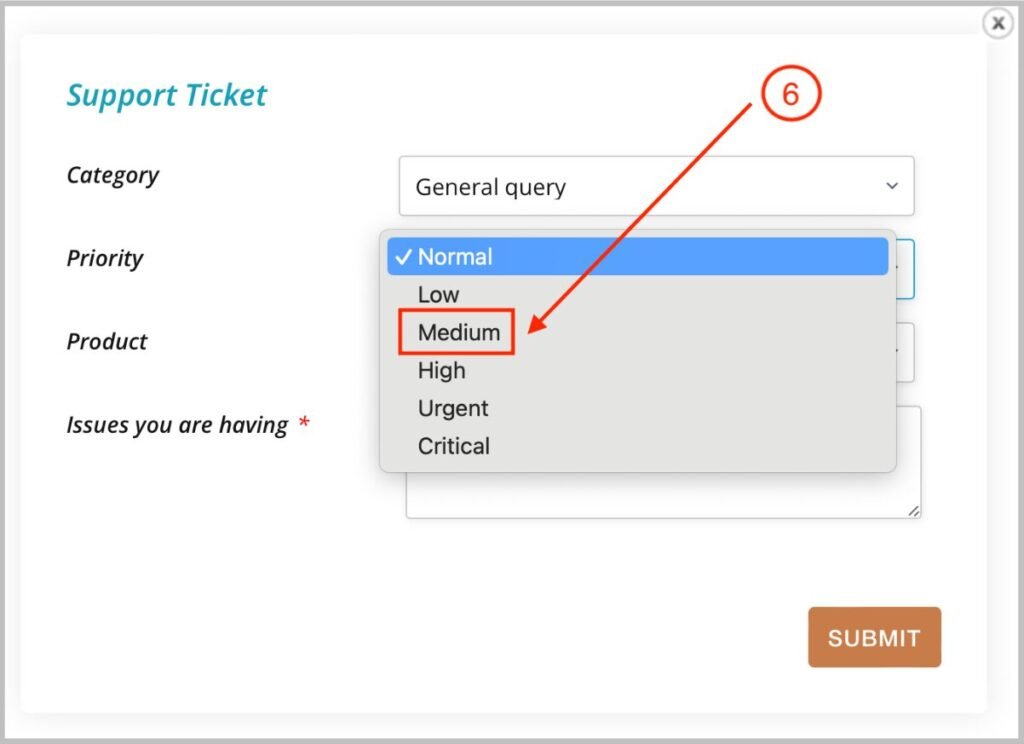
- The item that you inquiring about will be auto populated.
- State the reason of your request.
- Click Submit.
View the support ticket.
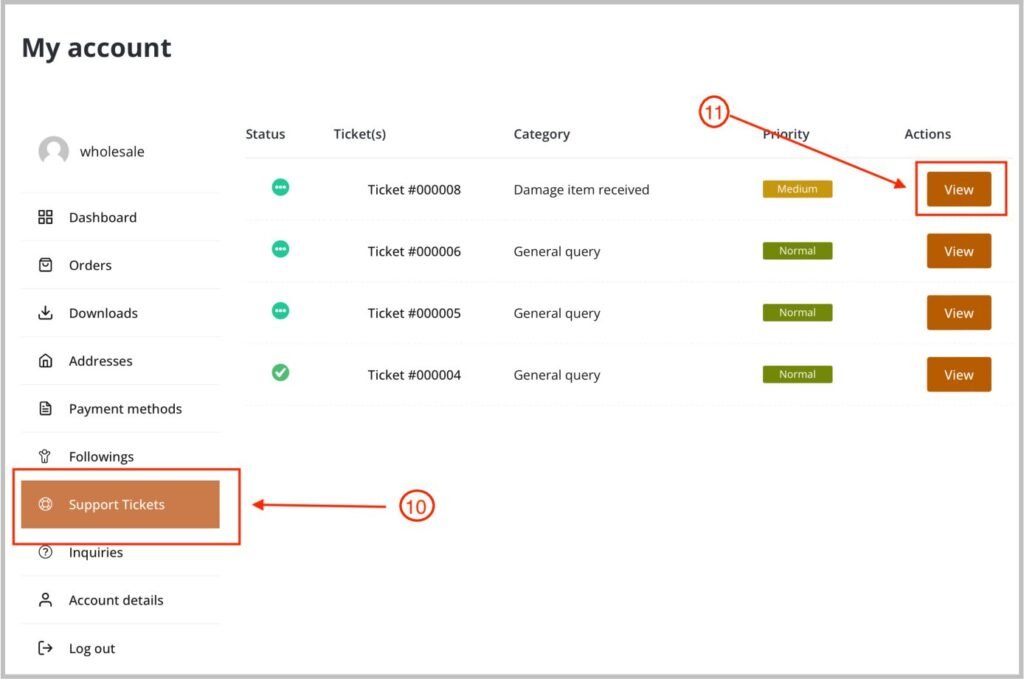
- To view your request, click Support Ticket from Menu.
- Click view to open the ticket page.
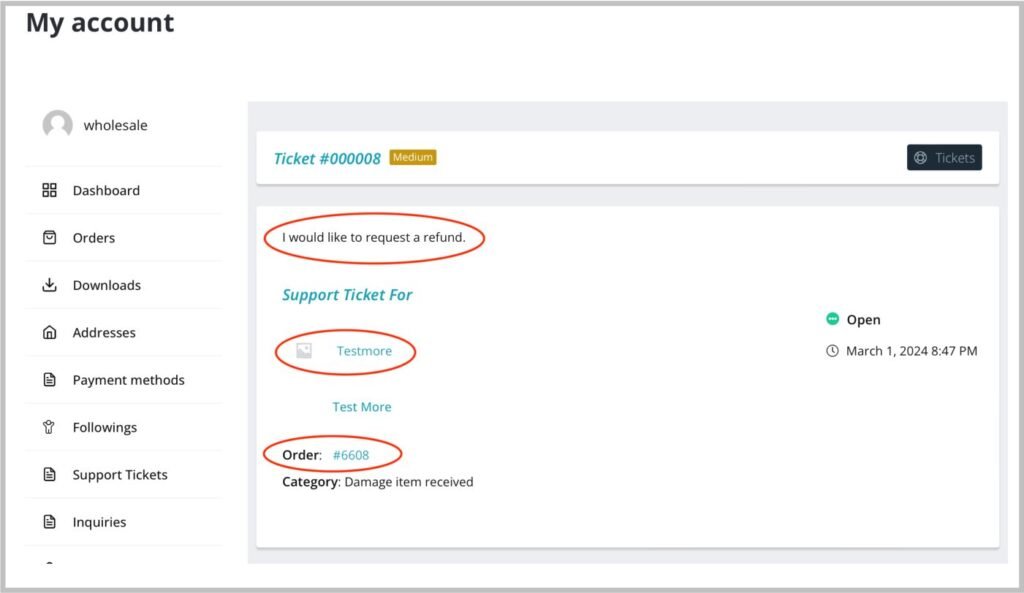
- The Ticket will include relevant information such as –
- Your request.
- The item that you would like to inquire about.
- The order number.
- To view the response from the seller, follow steps 10 and 11.
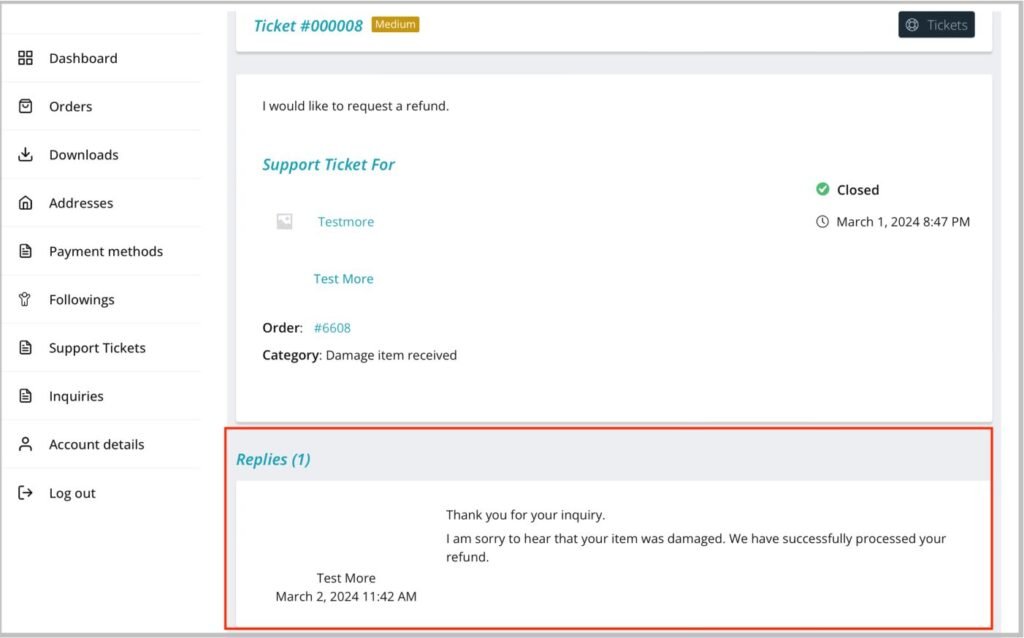
View refund summary
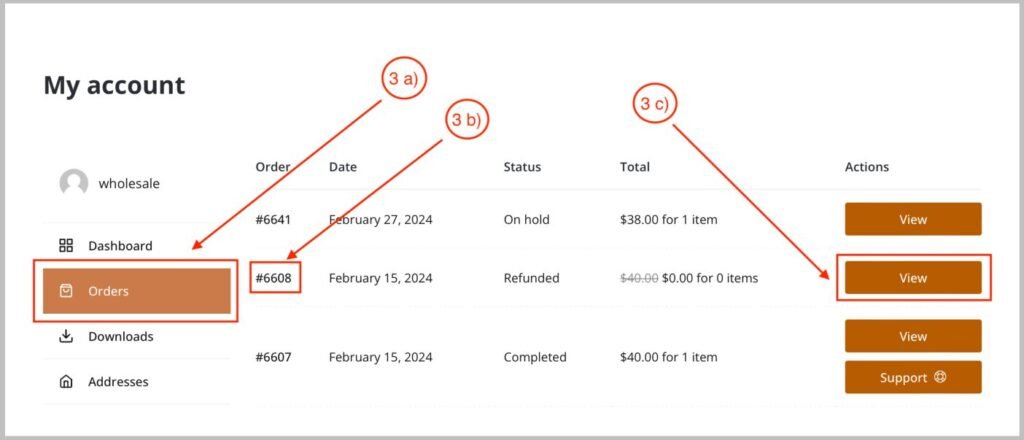
14. Once refunded, To view your refund –
- Once refunded, to view your refund , go to step 3 and then proceed to the steps below
- Click view order
- Identify the order number
- Click view
Please verify the seller’s refund policies.
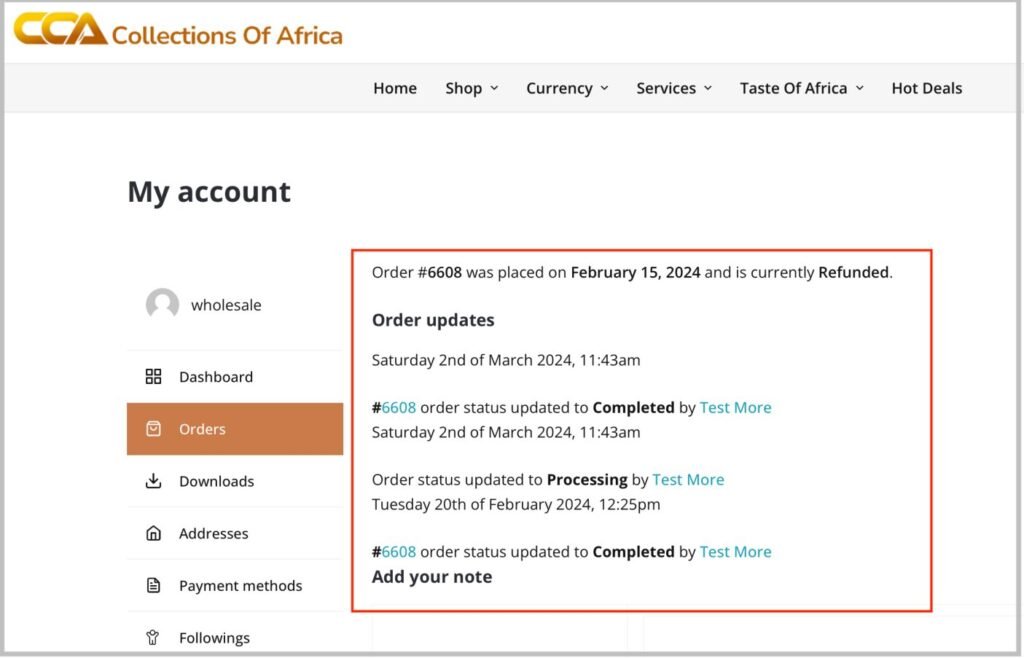
- It will show the processing timeline and the refund below that.
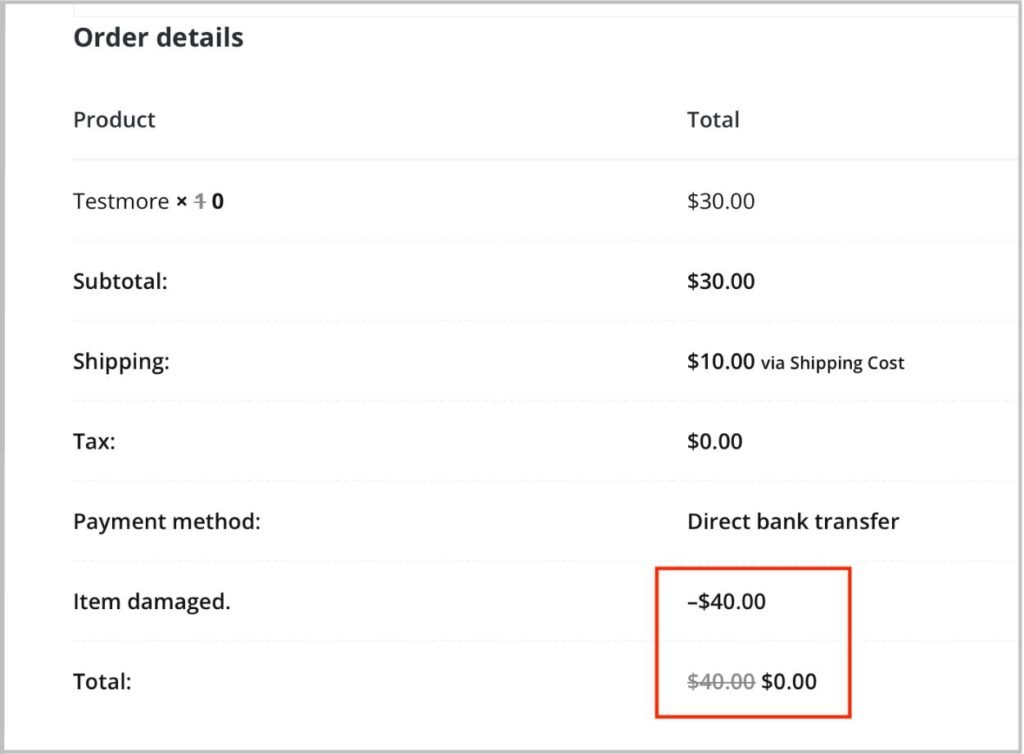
We hope our how to request a refund was informative and helpful. Please visit our Resource Center or Contact us if you need any more information.
