

How to add a simple product.
Adding a simple product to your store/shop is very easy. Please follow our step by step guide below on how to add a simple product.
Table of Contents
How to add a simple product.
Access the product tab.
How to add a simple product to your store/shop.
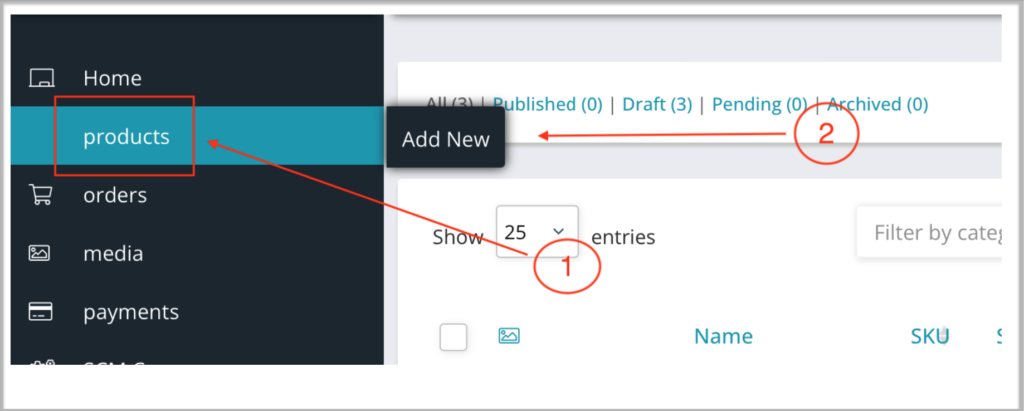
- Click the product tab on the menu to add a simple product.
- Click add new.
Product details.
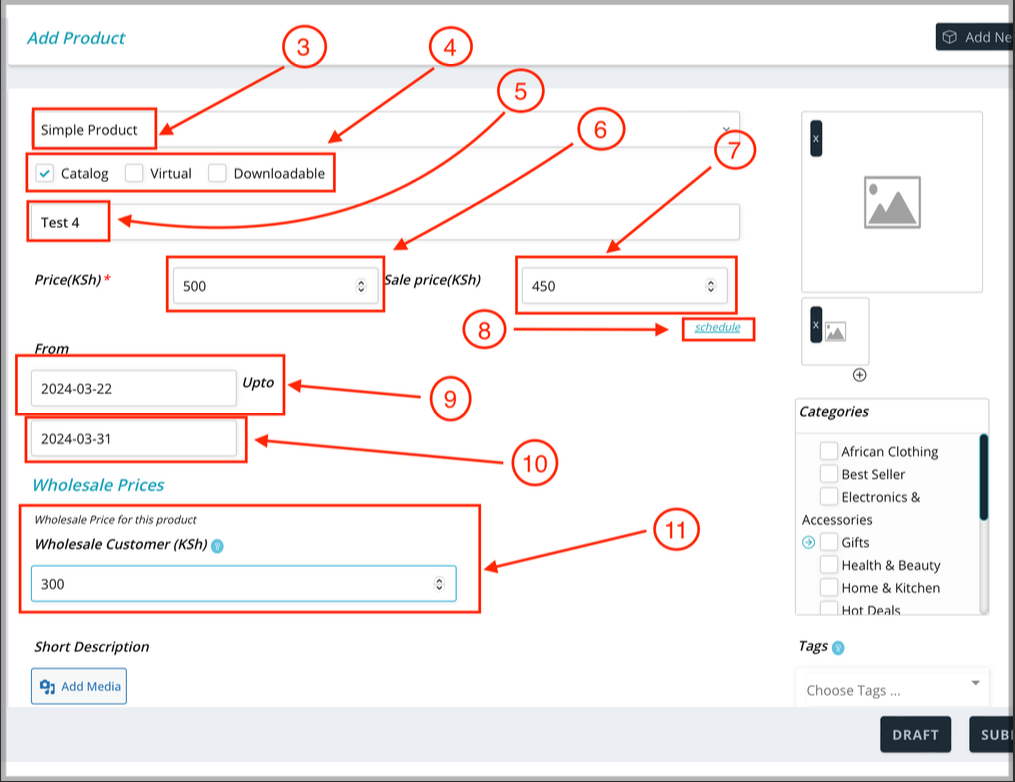
- Select simple product
- Select if it is a shippable product or a virtual product or a downloadable product.
- Type the name of the product
- Enter the price
- Enter the sale price (Optional)
- If you want to schedule the sale price for specific days, follow step 9 – 10
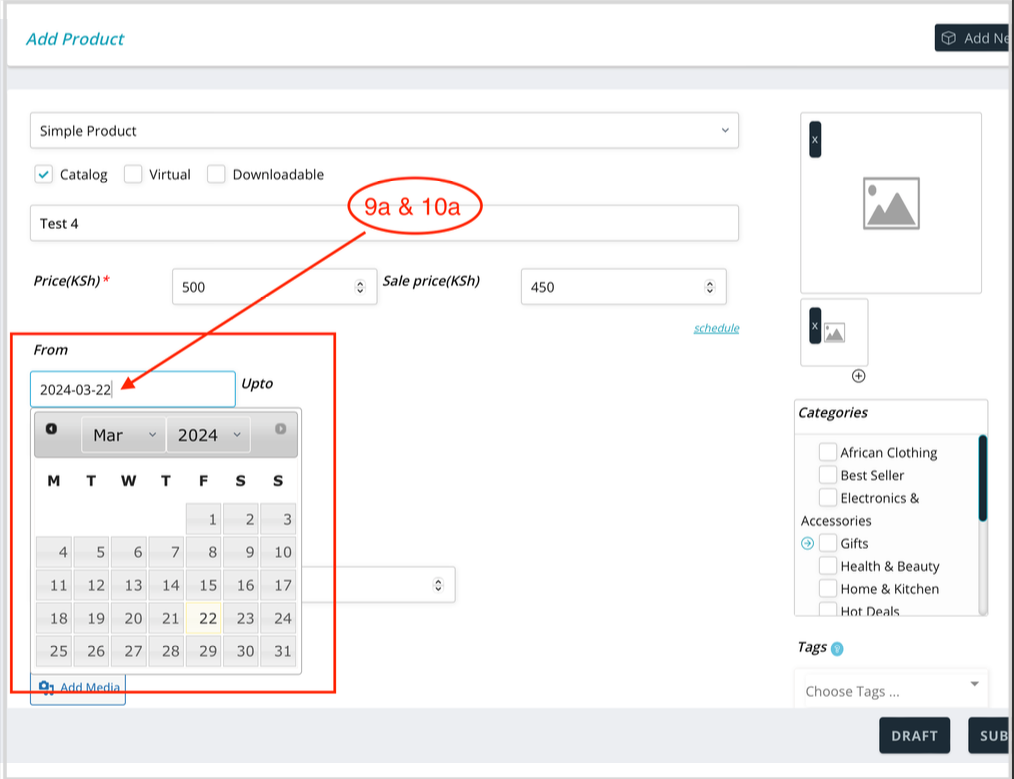
- Select the start date from the calendar dropdown (see 9a)
- Select the end date from the dropdown. (see 10a)
Schedule the sale dates.
- Choose the start and end date of the sale from the dropdown.
- Start date.
- End date.
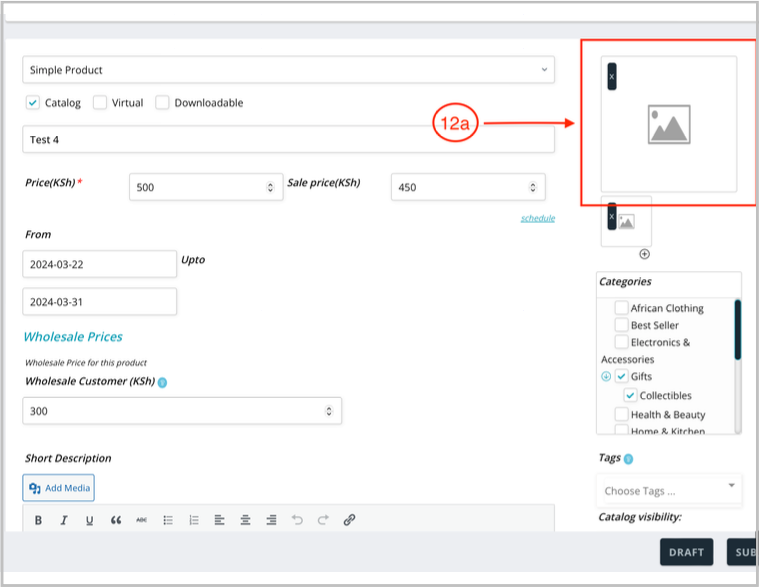
Upload the featured image.
- Click here to upload the featured image. (The main product picture.)
Upload method.
- Choose this option if you have NOT uploaded the image.
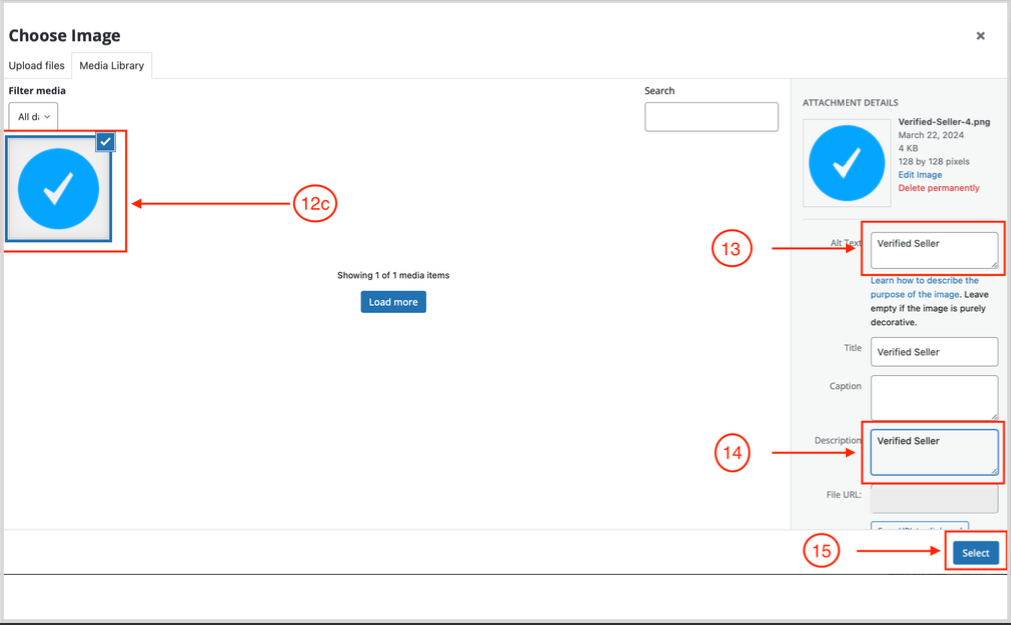
- Choose this option if you have already uploaded the image to your media library and then proceed to step 13. (See the image if you selected step 12c.
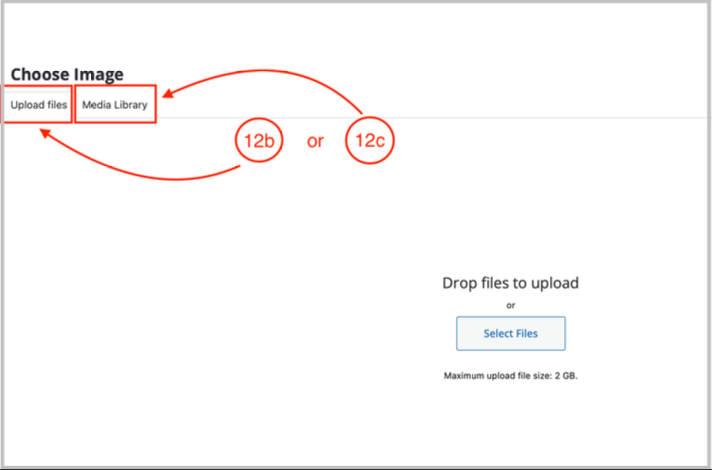
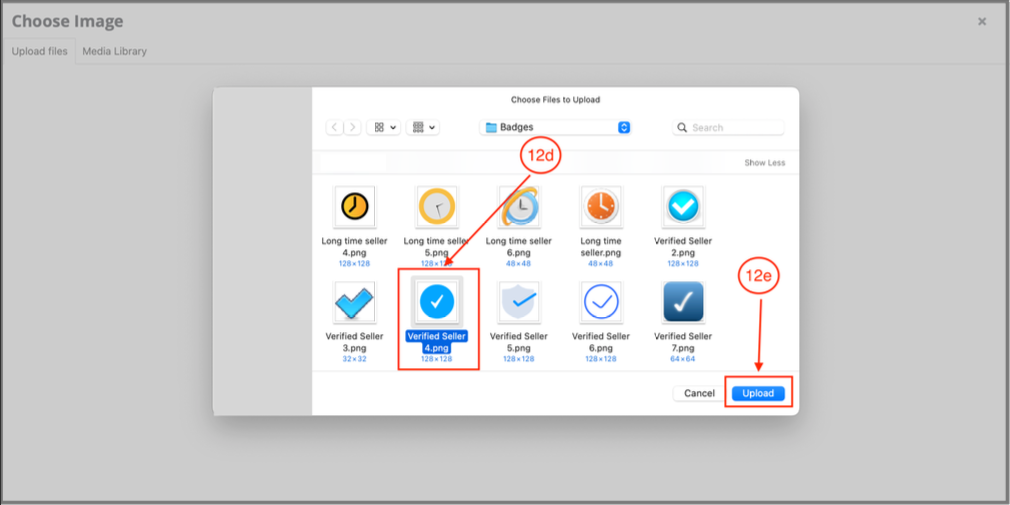
- If you have selected 12.b. and have not uploaded the image in the media library, proceed to select the desired image from your saved files in your device.
- Click upload
- Add a short description of your image in Alt Test box.
- Copy the description in Step 13 and add it in the description box.
- Click select.
Category and Tags.
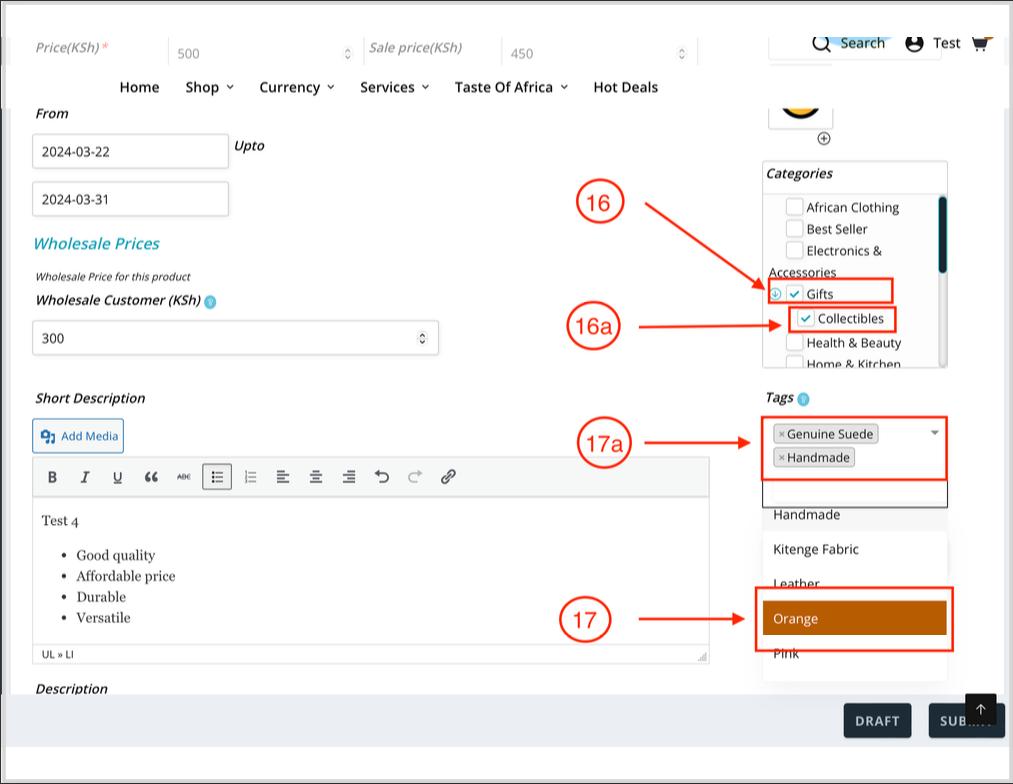
- Select Category.
- Select the Sub-Category.
- When you click tags, there will be a dropdown and a list of pre-entered tags.
- Click the tag that best describes your product and it will be auto filled as shown below.
Product description.
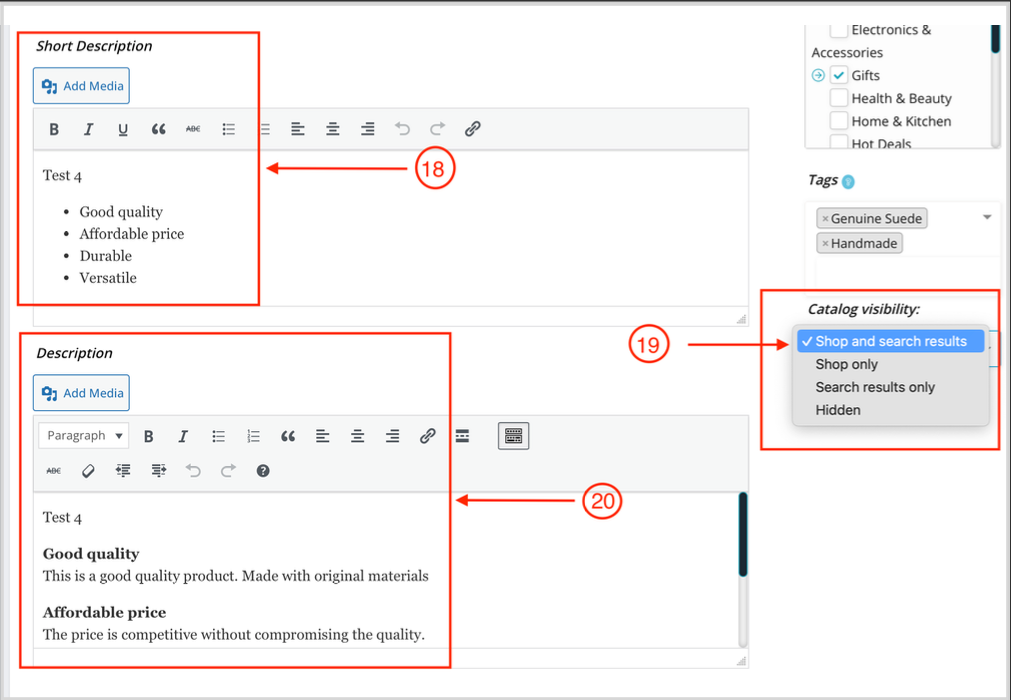
- Fill in a short description of your product and proceed to Step 19.
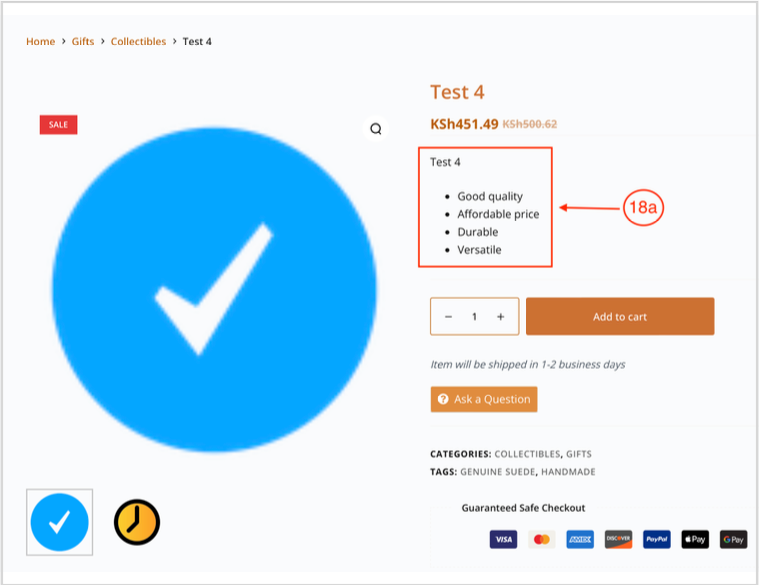
- This is how the short description will appear on the product.
- Select how you want your product to be viewed and searched. For the product to be visible in your store/shop and search results, select “shop and search results.
- Enter the long description.
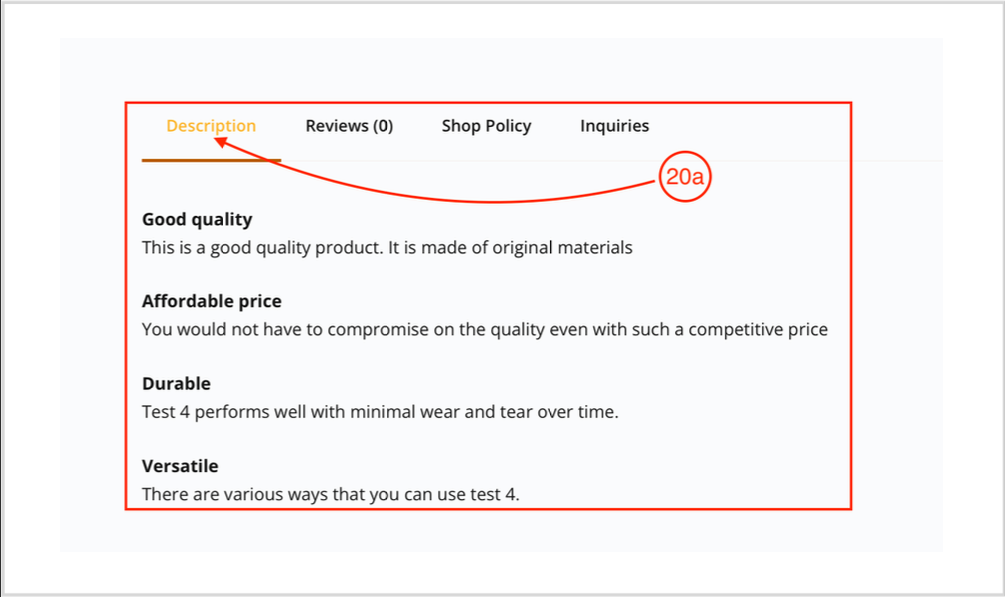
- This is how the long description will appear on the product page.
Short description appearance.
Long description appearance.
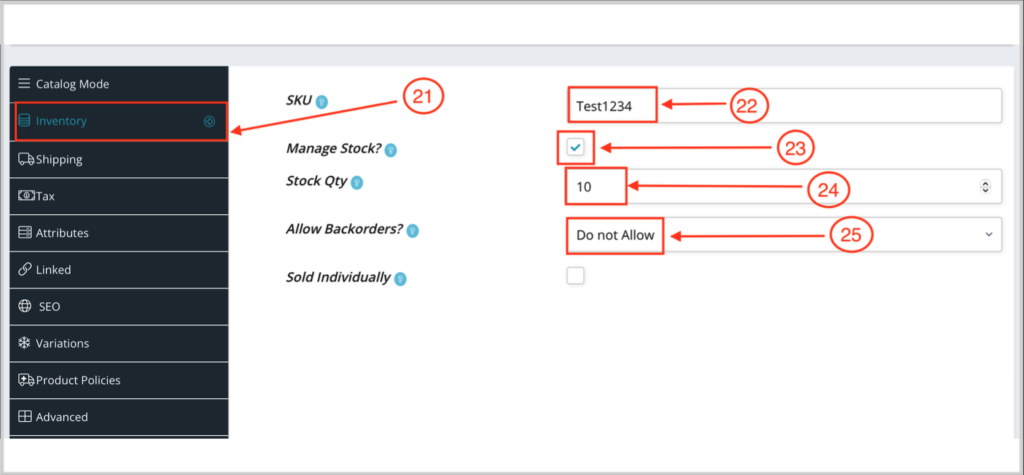
Inventory/Stock Count.
- To manage your inventory/stock count, click the Inventory tab.
- Enter the product or stock number. This a unique product identifier to help you manage your inventory/stock
- Check/Tick Manage Stock.
- Enter the how many item you have.
- Do not allow backorder. This is the option to have a customer order a product that is out of stock. (We do not allow back orders.)
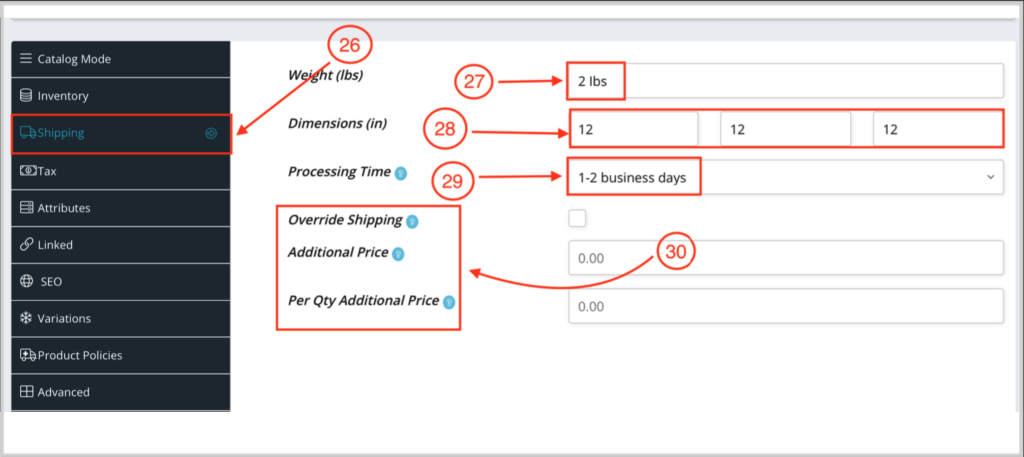
Shipping.
- Click shipping tab to enter shipping details.
- Enter the weight of the package. (The item should be already packaged to get the actual weight.)
- Enter the measurements of the package.
- Select the period when the item will be ready for shipping.
- Leave this area blank if you have already set up global shipping. (Click here to view global shipping.)
- If you would like to add more shipping charges to the item, fill in the amount and/or the charge per quantity.
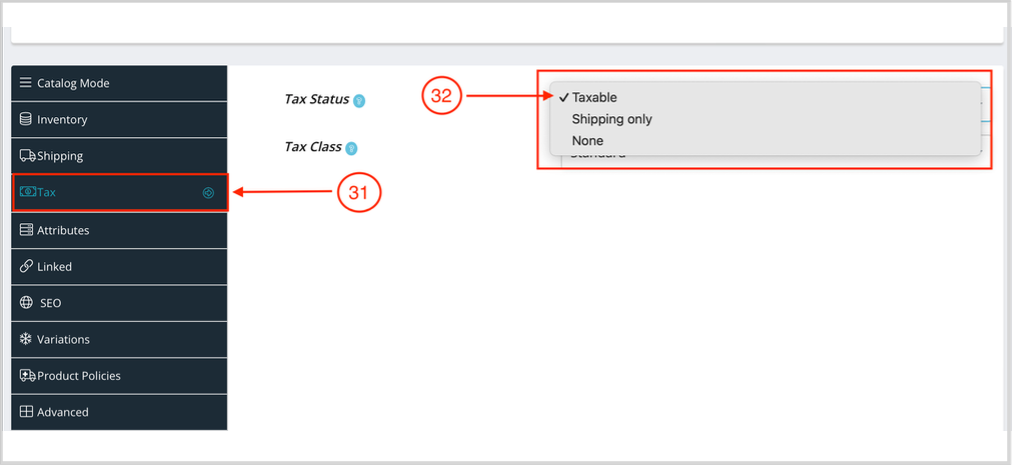
Tax
- Click the Tax tab.
- Select if the item is taxable.
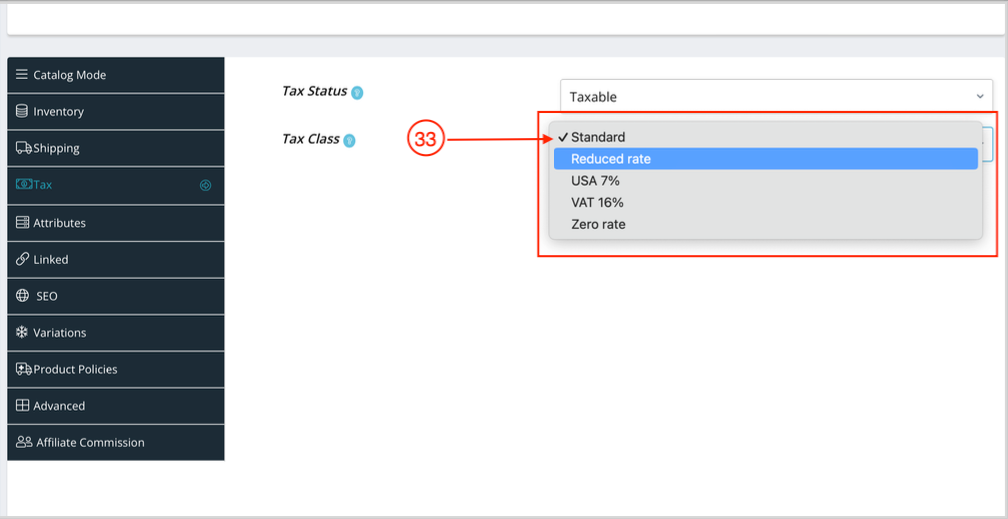
Tax Class.
- Select which tax is applicable from the dropdown.
Upsell.
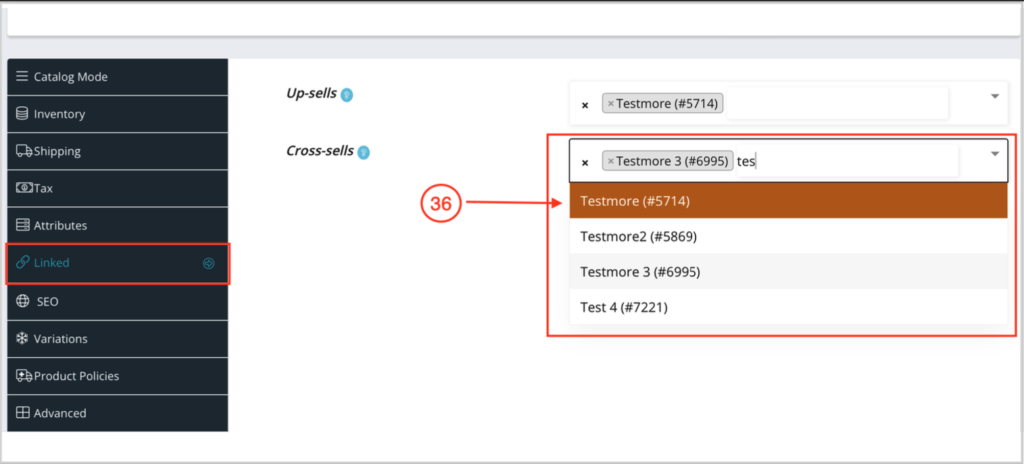
- Select Linked Tab if you want to show other products in your store/shop.
- Select upsell and pick a product from the dropdown to drive up your sales by show casing products that are more expensive.
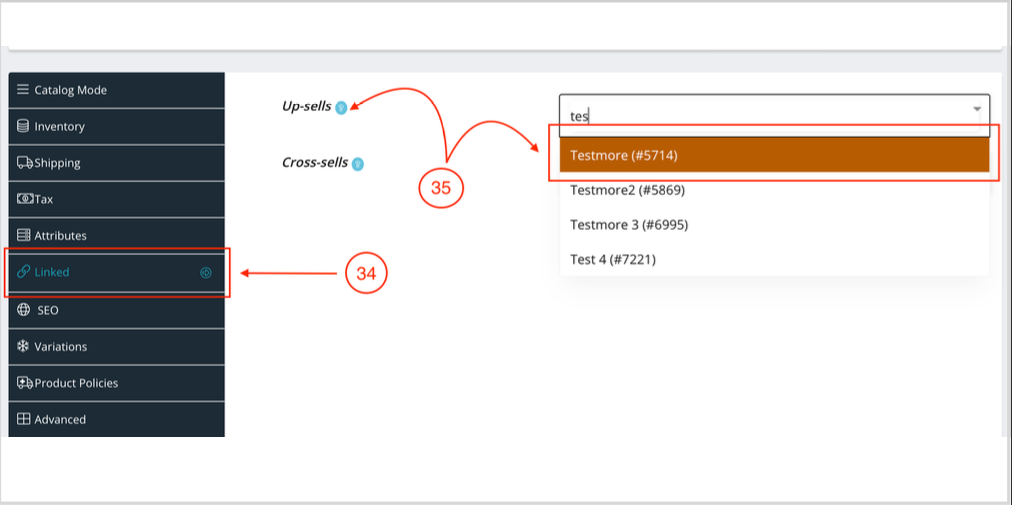
Cross sell.
- Select cross sell and pick a product from the dropdown to show case other products that are similar
SEO.
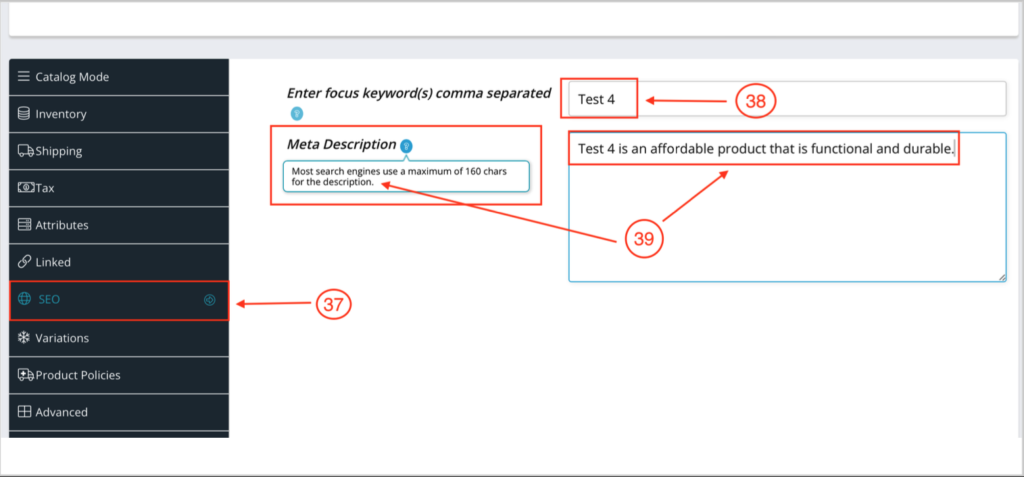
- Click SEO (Search Engine Optimization)
- Enter the words that describe the product the best. Keep in mind these are words that most probably what buyers will be searching on the internet.
- Enter a short description of the product. (It should be less than 160 characters) to be properly viewable in the search engine i.e Google.
Advanced
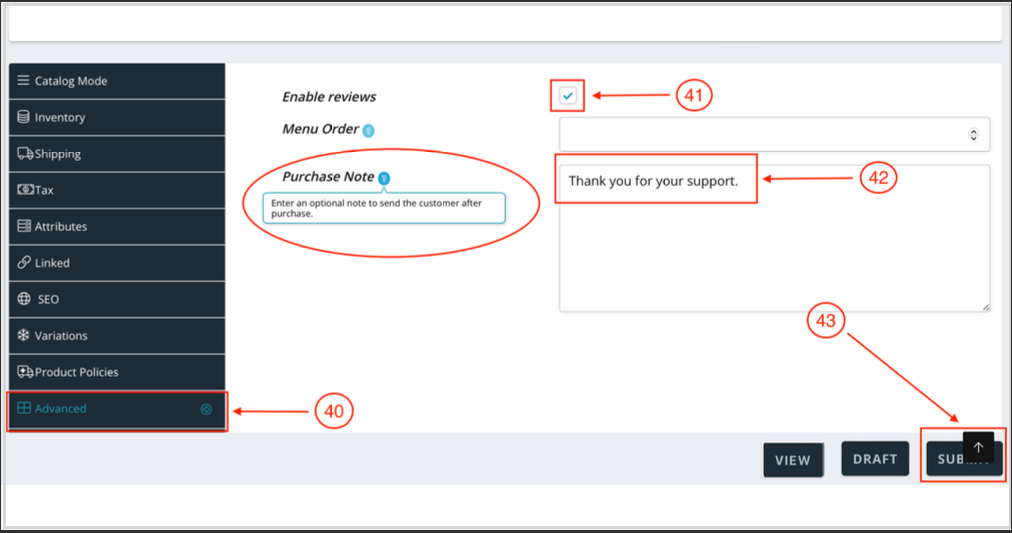
- Click Advanced tab to enter additional information.
- Check/tick “Enabled” to give an opportunity for buyers to rate your product.
- Good ratings will give future buyers the confidence to purchase from your store/shop.
- You can leave a note for the buyers either thanking them or special instructions for the customer I.e downloadable products (This field is optional)
- Click submit to publish your product.
We hope our how to add a simple product guide was informative and helpful. Please visit our Resource Center or Contact us if you need any more information.
